Age Calculator in LibreOffice Calc is useful when you have one date of birth or a whole list of birthdays and need a reliable age result. LibreOffice Calc includes date functions that can calculate complete years, months and days between two dates, so you can build a spreadsheet-based age calculator without manually counting birthdays.
The quickest option for a current age is =DATEDIF(A2;TODAY();"y") when the date of birth is in A2. For a fixed eligibility or reference date, replace TODAY() with a date cell such as B2. The official LibreOffice documentation describes DATEDIF as a function for whole days, months or years between two dates and documents the y, m, d, ym, md and yd intervals. LibreOffice Help: DATEDIF.
Quick Answer: The Best LibreOffice Age Formula
For most people, the simplest completed-age formula is:
=DATEDIF(A2;TODAY();"y")Here, A2 contains the date of birth and TODAY() supplies the current date. The result is the number of complete years between the two dates. LibreOffice’s DATEDIF documentation defines the "y" interval as whole years between the start and end dates.
For a particular cutoff date, put that date in B2 and use:
=DATEDIF(A2;B2;"y")This second version is usually the better choice for admission lists, recruitment checks, historical records and any worksheet where every row must be measured against the same reference date.
Set Up the Age Calculator in LibreOffice Calc
A simple sheet can keep the inputs and outputs separate:
| Column | Purpose | Example |
|---|---|---|
| A | Date of birth | 15-Jun-2000 |
| B | Reference date | 21-Sep-2026 |
| C | Completed age | 26 |
| D | Age in years, months and days | 26 years, 3 months, 6 days |
| E | Total completed months | 315 |
| F | Total days | 9,589 |
Enter the dates as real Calc date values rather than text that only looks like a date. For formulas, LibreOffice’s documentation recommends unambiguous ISO-style dates or the DATE() function when you need to place a date directly inside a formula. Regional date formats can otherwise be interpreted differently.
- Put one date of birth in each row of column A.
- Use column B for a common cutoff or reference date when the calculation must be fixed.
- Keep the output columns numeric where you need sorting or further calculations.
- Use a text-joining formula only in the final display column when you want a result such as “26 years, 3 months, 6 days.”
1. Calculate Current Age from Date of Birth
When the question is simply “How old am I today?”, combine DATEDIF with TODAY():
=DATEDIF(A2;TODAY();"y")For example, with a date of birth of 15-Jun-2000, the result on 21-Sep-2026 is 26 complete years. The key point is that the formula checks the actual date, not just the two calendar years.
That matters around birthdays. A simple year-subtraction formula such as =YEAR(TODAY())-YEAR(A2) can return 26 for a person born late in the year even when the birthday has not happened yet. DATEDIF compares the full start and end dates and therefore answers the completed-years question directly.
2. Calculate Age on a Specific Date
For an examination cutoff, school-admission date, application date or any other historical reference point, keep the reference date in a separate cell.
=DATEDIF(A2;B2;"y")Suppose A2 is 15-Jun-2000 and B2 is 01-Jun-2026. The completed age is 25 because the June 15 birthday has not yet occurred on the reference date. If B2 changes to 21-Sep-2026, the result becomes 26.
This approach is safer for records that should not change tomorrow. A TODAY() formula moves with the current date; a reference-date cell keeps the calculation tied to the date you actually need.
3. Calculate Exact Age in Years, Months and Days
When you want a result such as 26 years, 3 months and 6 days, calculate the completed years and the remaining months and days separately:
=DATEDIF(A2;B2;"y")&" years, "&DATEDIF(A2;B2;"ym")&" months, "&DATEDIF(A2;B2;"md")&" days"LibreOffice documents ym as the whole months left after complete years and md as the whole days left after complete years and months. This is convenient when you want one readable age string rather than three separate cells.
For a workbook that will be used for many different date combinations, test a few known cases, especially dates near the end of a month. Date functions can have edge cases, and the spreadsheet should be checked against examples that you know are correct before it becomes a shared record.
4. Calculate Total Months and Total Days
Sometimes the useful answer is not an age in years but the total elapsed time in one unit. LibreOffice’s DATEDIF supports whole months and whole days directly.
| What you need | Formula | Meaning |
|---|---|---|
| Complete years | =DATEDIF(A2;B2;"y") | Whole years between the dates |
| Complete months | =DATEDIF(A2;B2;"m") | Whole months between the dates |
| Complete days | =DATEDIF(A2;B2;"d") | Whole days between the dates |
This distinction is useful. “26 years” and “315 months” describe the same elapsed period using different units, but they are not the same question as “How many calendar years old is this person?” Choose the unit that matches your task before you build a report.
5. Calculate Age in Weeks
There is no need for a special age-in-weeks function when you already have the day difference. Divide total days by seven.
=DATEDIF(A2;B2;"d")/7If you need only complete weeks, wrap the result in INT():
=INT(DATEDIF(A2;B2;"d")/7)This is an elapsed-time calculation. It is different from asking which numbered calendar week a date falls in. For an age tracker, dividing elapsed days by seven is the straightforward interpretation.
6. Calculate Age or Elapsed Time in Hours, Minutes and Seconds
When the birth entry or other starting point includes a time of day, LibreOffice can also work with fractions of a day. The official date-and-time guide demonstrates using NOW()-A1 and then multiplying by 24, 60 and 60 to convert days to hours, minutes and seconds.
| Result | Formula |
|---|---|
| Elapsed days | =NOW()-A2 |
| Elapsed hours | =(NOW()-A2)*24 |
| Elapsed minutes | =(NOW()-A2)*1440 |
| Elapsed seconds | =(NOW()-A2)*86400 |
There is an important LibreOffice detail here: the documentation notes that the value from NOW() is not continuously refreshed just because the function returns the current time. The example calculates the value at the moment the formula is entered or recalculated. For a normal age-in-years calculation, TODAY() is simpler; use NOW() when the time component is genuinely part of the question.
7. Build a Reusable Age Calculator for a Whole List
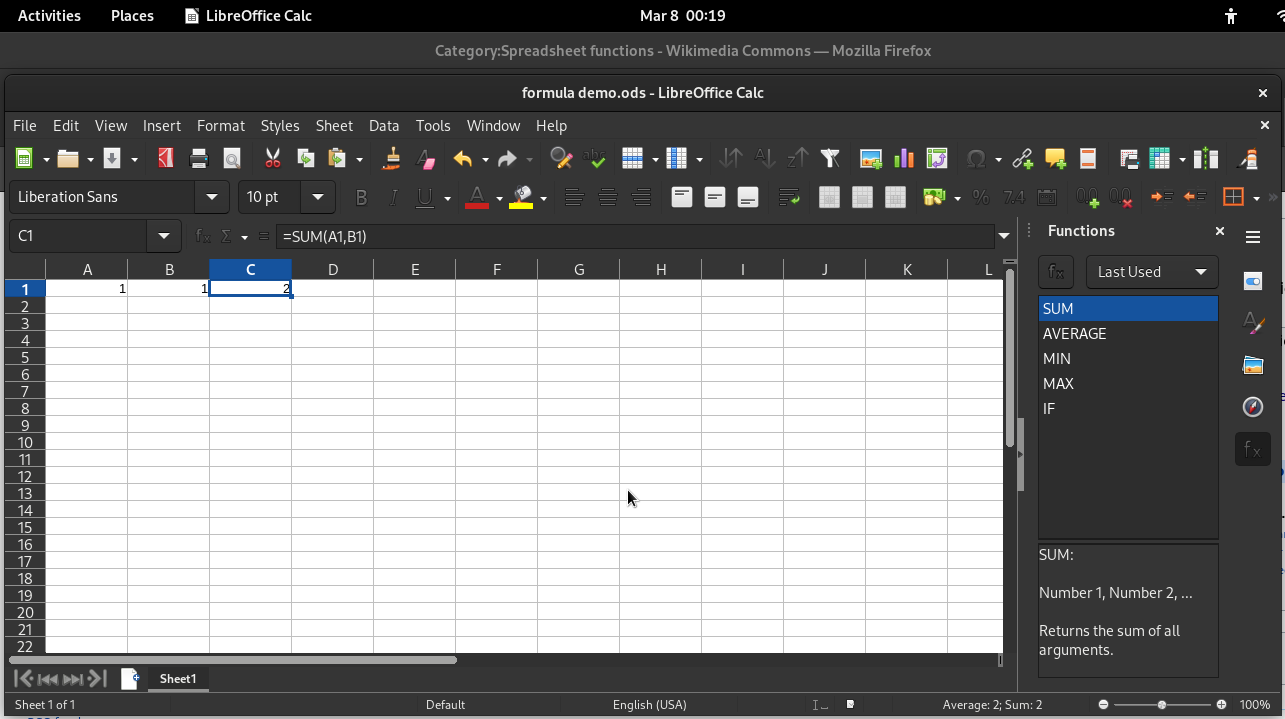
LibreOffice becomes especially useful when you have dozens or hundreds of dates of birth. Keep one reference date in a fixed cell and fill the age formula down the sheet.
=DATEDIF(A2;$B$1;"y")Here, B1 contains the common reference date and the dollar signs make that cell an absolute reference. When you copy the formula downward, A2 becomes A3, A4, A5 and so on, while B1 remains the same.
A simple structure is:
- Enter each date of birth in column A.
- Put one fixed cutoff date in B1.
- Enter the age formula in C2.
- Fill C2 downward for the rest of the list.
- Add separate columns for total months or total days when needed.
- Test rows that are just before, exactly on, and just after a birthday.
This design is much easier to audit than typing a different date into every formula. It also makes it clear which date controls the eligibility calculation.
8. Avoid Date-Format Errors in LibreOffice Calc
Many apparent age-calculation problems are really date-entry problems. If Calc treats a date as text, functions may fail or return an unexpected result.
- Prefer clear dates. When a date is placed directly inside a formula, use
DATE(year;month;day)or an ISO 8601-style date string rather than an ambiguous regional format. - Check the cell format. A cell that visibly shows a date should still contain a real date value that Calc can calculate with.
- Keep the start date before the end date. LibreOffice documents that the end date must be later than the start date for DATEDIF.
- Do not mix text and date values. A copied date column can contain a mixture of real dates and text strings if the source system was inconsistent.
For example, instead of putting a regional date directly into a formula, use:
=DATEDIF(DATE(2000;6;15);DATE(2026;9;21);"y")That formula is explicit about the year, month and day values and does not depend on how a particular locale writes dates with slashes or dots.
Worked Example: Check an Age Calculation Step by Step
Suppose a person was born on 15-Jun-2000, and you need the age on 21-Sep-2026.
| Step | Formula | Result |
|---|---|---|
| Complete years | =DATEDIF(A2;B2;"y") | 26 |
| Remaining months | =DATEDIF(A2;B2;"ym") | 3 |
| Remaining days | =DATEDIF(A2;B2;"md") | 6 |
| Complete months | =DATEDIF(A2;B2;"m") | 315 |
The final age string is therefore 26 years, 3 months, 6 days. Breaking the answer into components is useful when you are checking whether a formula is doing what you expect.
A Useful Cross-Check from the LibreOffice Documentation
LibreOffice’s DATEDIF documentation provides a concrete birthday example: a person born on 17-Apr-1974 is measured against 13-Jun-2012. The documented results are 38 whole years, 1 remaining month and 27 remaining days. The same example gives 457 complete months and 13,937 complete days.
That makes a useful test case for a new worksheet. If your formulas do not reproduce the documented values with the same two dates, check the date cells, formula separators and interval strings before trusting the workbook.
Official references: LibreOffice Help — DATEDIF and LibreOffice Help — Calculating With Dates and Times.
LibreOffice Calc vs an Online Age Calculator
Both approaches are useful, but they solve different problems.
| Use case | LibreOffice Calc | Online calculator |
|---|---|---|
| One person’s current age | Works well | Usually faster |
| Hundreds of DOBs | Very useful | Less convenient |
| One fixed eligibility date | Very useful | Useful for individual checks |
| Reusable worksheet | Excellent fit | Less convenient |
| No spreadsheet software required | Not applicable | Useful |
For a single calculation, you can also use the site’s Age Calculator. When you want a detailed date-of-birth result, see Age Calculator by Date of Birth. For pure date intervals, see Days Between Two Dates Calculator. If you work mainly in Microsoft Excel or Google Sheets, our related guides cover Age Calculator in Excel and Age Calculator in Google Sheets.
Common Mistakes to Avoid
- Using only YEAR subtraction. This ignores whether the birthday has happened yet.
- Using TODAY() for a historical cutoff. A changing reference date can silently change the result.
- Entering dates as text. A visual date is not necessarily a usable date value.
- Reversing the two dates. DATEDIF expects the end date to be later than the start date.
- Copying a fixed-date formula without an absolute reference. Use
$B$1when every row must use the same cutoff date. - Mixing date-only and time-stamped values. Decide whether the time component matters before calculating hours, minutes or seconds.
- Skipping a known-date test. Validate the sheet with at least a few cases you can verify manually or against the official documentation.
Make the Results Easier to Read and Check
A spreadsheet can calculate the right number and still be difficult to review if the results are poorly formatted. For an age list, keep the raw inputs separate from the display text. This makes it much easier to sort, filter and audit the data later.
| Column | Recommended format | Why it helps |
|---|---|---|
| Date of birth | Date | Keeps the input usable by Calc date functions |
| Reference date | Date | Makes the cutoff visible and easy to change |
| Completed age | Number | Useful for sorting, filtering and comparisons |
| Age display | Text | Creates a reader-friendly years-months-days sentence |
| Total days | Number | Supports further elapsed-time calculations |
It is also worth keeping the reference date in one clearly labelled cell. For example, place Cutoff Date in B1 and the actual date in B2. Then use an absolute reference such as $B$2 in your formulas. Someone opening the workbook can immediately see which date controls the result instead of hunting through individual formulas.
Troubleshooting: What to Check When the Formula Looks Wrong
When an age calculation looks incorrect, change one thing at a time rather than replacing the formula immediately. The most useful checks are:
- Inspect the input cells. Click the date-of-birth cell and confirm Calc recognises it as a date value, not a text string.
- Check the date order. For DATEDIF, the end date must be later than the start date. A reversed pair is a formula-input problem, not an age-calculation problem.
- Check the separators. LibreOffice formula syntax in this article uses semicolons between arguments, such as
DATEDIF(A2;B2;"y"). - Test the formula against a known case. Use a date pair with an easily checked answer before filling the formula down hundreds of rows.
- Look for a changing reference. If every row should use one cutoff date, make that cell absolute with dollar signs.
- Check the number format. A date difference may appear as a calendar date until the result cell is formatted as a number.
A practical debugging method is to create three temporary cells: one for complete years, one for remaining months and one for remaining days. Once those three results look correct, combine them into the final display formula. This is often easier to inspect than trying to debug one long formula all at once.
Which Formula Should You Use?
The right formula depends on the question you are trying to answer. Use this quick guide before choosing a function:
| Your goal | Formula pattern | Best reference |
|---|---|---|
| Current age in completed years | =DATEDIF(A2;TODAY();"y") | Today |
| Age on a known cutoff date | =DATEDIF(A2;B2;"y") | B2 |
| Age as years, months and days | y + ym + md | Fixed date or TODAY() |
| Total completed months | =DATEDIF(A2;B2;"m") | B2 |
| Total completed days | =DATEDIF(A2;B2;"d") | B2 |
| Elapsed hours/minutes/seconds | NOW()-A2 with unit conversion | Current date and time |
This separation prevents a common mistake: using a formula because its output looks familiar rather than because it matches the question. “Age today,” “age on 1 January,” “total months lived,” and “elapsed hours” are related calculations, but they measure different things.
FAQs
What is the simplest age formula in LibreOffice Calc?
Use =DATEDIF(A2;TODAY();"y") when A2 contains the date of birth and you want the number of completed years as of today.
How do I calculate age on a fixed date?
Put the reference date in B2 and use =DATEDIF(A2;B2;"y"). This is useful for application or eligibility cutoff dates.
Can LibreOffice Calc show years, months and days together?
Yes. You can combine the y, ym and md intervals in one formula to create a readable result such as “26 years, 3 months, 6 days.”
Why does my DATEDIF formula give an error?
Check that both inputs are real dates, that the end date is later than the start date, and that the formula uses LibreOffice’s separator conventions. When placing a literal date inside a formula, use DATE() or an unambiguous ISO-style date.
Should I use TODAY() or NOW() for an age calculator?
Use TODAY() for normal date-based age. Use NOW() only when the time of day is part of the calculation, such as elapsed hours or minutes.
Final Takeaway
An age calculator in LibreOffice Calc does not require complicated spreadsheet logic. For completed years, start with =DATEDIF(A2;TODAY();"y"). For a fixed cutoff, use a reference-date cell such as B2. For a detailed age, combine the y, ym and md intervals. When you need total elapsed time, use the appropriate whole-unit DATEDIF interval or convert days into weeks, hours, minutes or seconds.
The most important habit is to make the reference date explicit and test your sheet with known dates before using the results in a larger record. LibreOffice’s own documentation provides DATEDIF and date/time examples that make good validation cases.
Informational note: spreadsheet formulas can behave differently at date boundaries and with inconsistent input data. For official eligibility decisions, always check the governing notification, rule or institution’s stated cutoff date.